What is Dashie?
Dashie is a family dashboard app that lives on a shared screen at home — a smart TV, a kitchen tablet, a wall-mounted display. It pulls together the things your family checks all day — calendars, photos, weather, and more — onto a central display that everyone can see. It integrates seamlessly with Home Assistant for tech-savvy users.
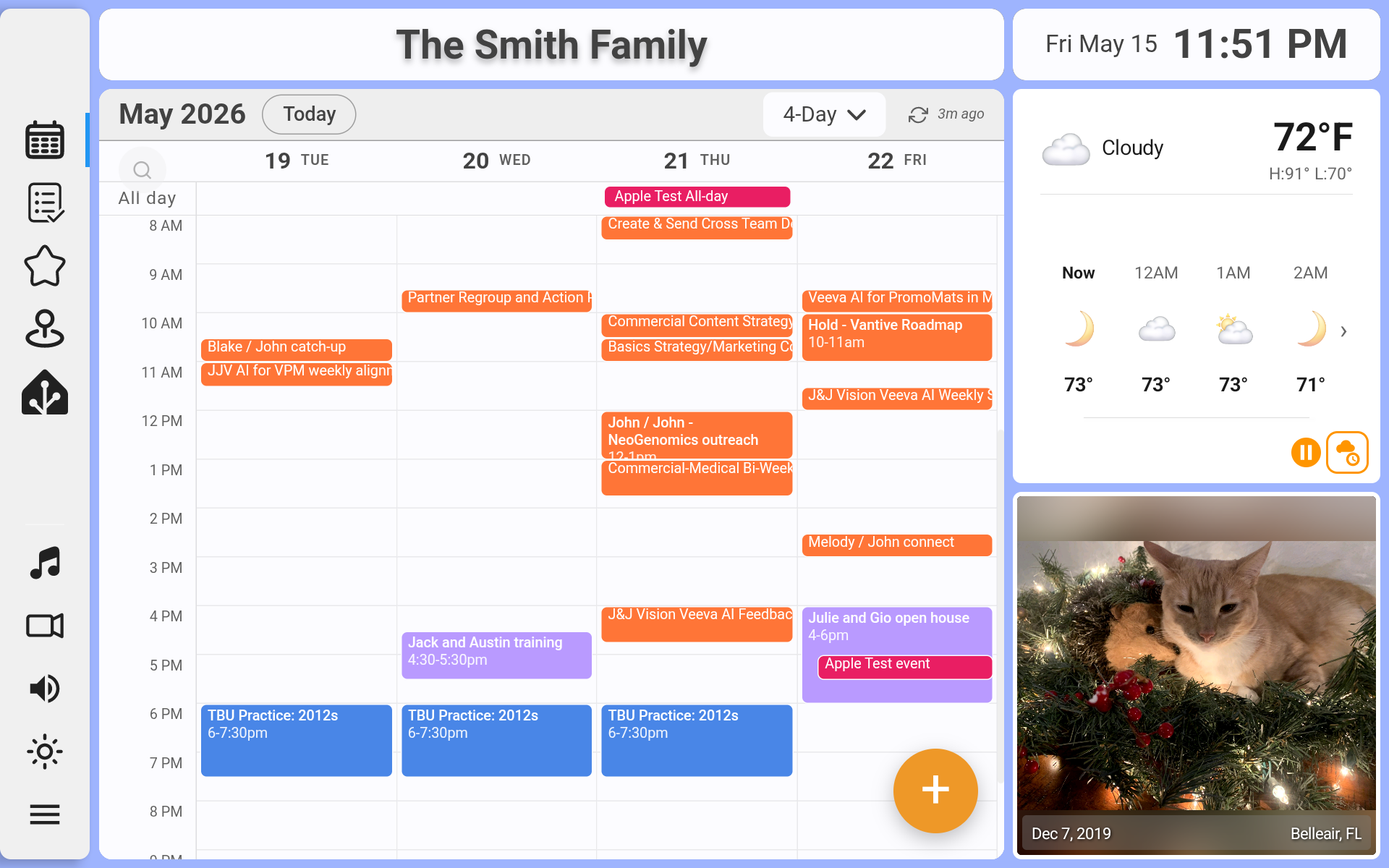
Dashie is currently in beta release and requires a Google Account to access all features.
Where can you use it?
Dashie runs on Android, which means it works on a few different categories of device:
On a Smart TV
Dashie runs on Fire TV, Google TV, and other Android TV devices. You can open the app alongside your normal Smart TV apps, but Dashie is most commonly used as a dedicated family dashboard display — a more economical alternative to a Skylight, Hearth, or similar display.
Note — Apple TV, Roku, and other Smart TVs are currently not supported.
For step-by-step install and remote-setup tips, see Setting Up Dashie on Your Smart TV. For details on how to download Dashie, go to the Get Dashie page.
On a Tablet
Dashie runs on Android tablets (an iOS app is planned). It looks and works best on 15" or larger displays and is currently designed for landscape orientation, which makes it a great fit for a wall mount, kitchen counter, or family-room shelf. Home Assistant users can also use it to host smaller HA dashboards.
If your tablet doesn't have a supported app store, see Android Tablet Sideloading for how to install the APK directly.
With Home Assistant
If you already run Home Assistant, Dashie pairs deeply with it — kiosk-style display of your HA dashboards, voice control of HA entities, motion or face wake, Music Assistant integration, and more.
Start with the Complete Guide for Home Assistant Users, and see the full guides list for HA-specific topics (sideloading, voice setup, screensaver, photos, the HACS integration, and Music Assistant).
Setting up Dashie
After installing Dashie on your device, here's a typical first-time setup path. Each step has its own guide for more detail. Home Assistant users should follow the Home Assistant setup guide.
1. Sign up for Dashie with your Google account
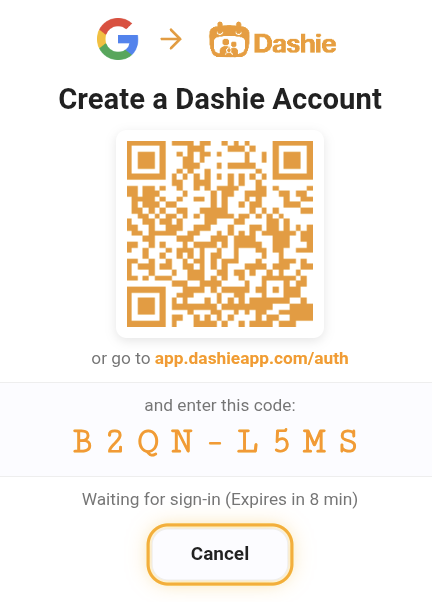
Dashie requires a Google account. In the Dashie app, sign up for Google and link your Google account to Dashie by scanning the QR code with your mobile device. After you're logged in, Dashie will walk you through a quick setup wizard for your location and basic preferences.
2. Upload photos
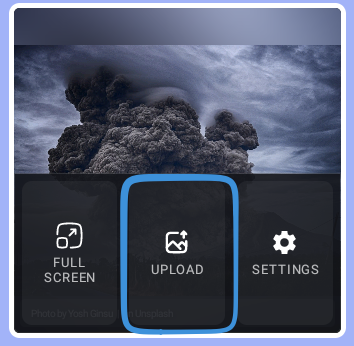
Upload photos to the Dashie cloud (up to 500 MB) to display in the photos widget. Dashie shows the date and location of each photo by default. Setting Up Photos ›
3. Add calendars
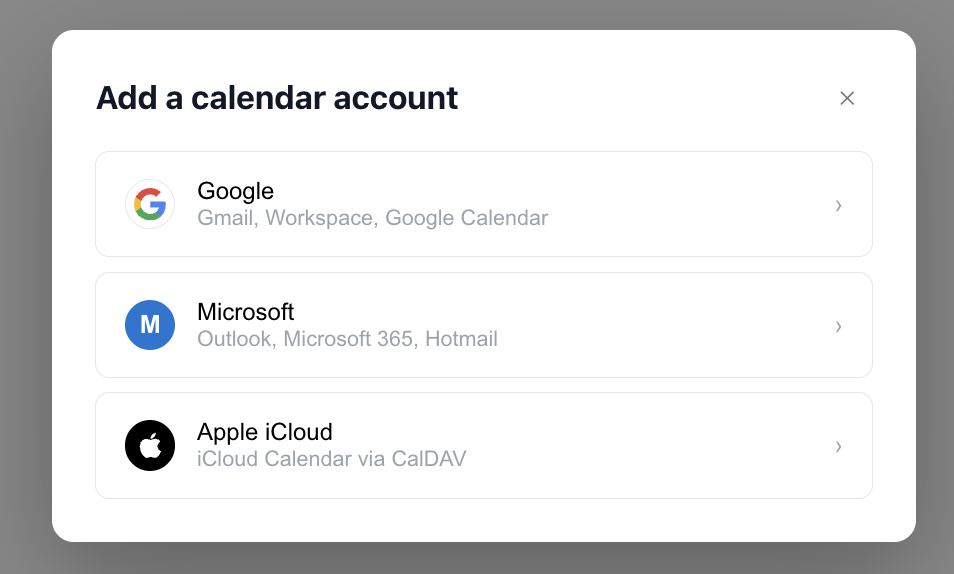
Bring everyone's schedule into one view. Dashie supports Google Calendar, Microsoft, and Apple iCloud, and you can assign specific calendars to specific family members. Setting Up Calendars ›
4. Set up your family
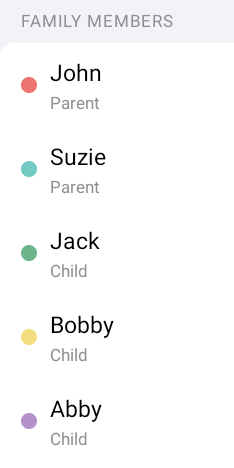
Add the people in your household, assign colors, and configure each member's profile. This is what makes calendar events and other family-attributed data know who's who. Family Management ›
What's planned
A few things on the roadmap:
- Additional themes
- iOS app
- Voice & AI features in the family product
- GPS Locations (currently in alpha)