The Family list is where you tell Dashie who's in your household. It's the connective tissue that lets calendar events and other family-attributed data know who's who. Each member gets a color, a role, and an identity that flows across every Dashie widget.
Adding family members
Open the Family screen in the Dashie console (or on the TV: Settings › Family) and add each person in your household. The basics for each member are name, role (Parent or Child), and a color that will follow that person around the dashboard.
You can also set the household's Family Name and Zip Code at the top of the Family screen — the family name shows in the dashboard header and the zip drives the weather widget.
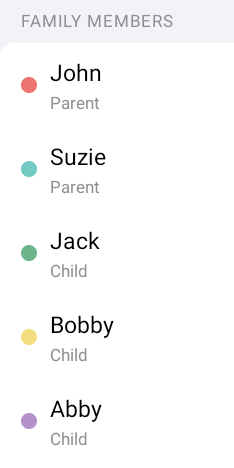
Roles: Parent vs. Child
Each member is either a Parent or a Child. The difference shows up in a few places:
- Some account- and family-level changes (deleting members, payment, subscription) are reserved for accounts associated with a Parent.
- The role doesn't restrict who shows up on the calendar — both parents and children appear in shared schedules.
Color assignment
Each member is assigned a distinct color when you add them. That color becomes their visual identity throughout Dashie:
- Calendar events from that member's calendar show in their color
Colors are picked from a built-in palette designed to stay readable against both light and dark themes. You can change a member's color at any time from the Family screen — the change flows everywhere within a few seconds.
Linking a member to their Google account
Each family member can optionally be linked to their own Google account. This is what lets Dashie pull their personal calendar into the family view (assigned to them, in their color) without those events being mixed up with someone else's.
Linking is optional — a member without a linked Google account is still a fully functional Dashie family member; they just won't have a personal calendar feed. Many households link the parents and leave younger kids unlinked until they have their own Google account.
How family identity flows across Dashie
Once members exist, they show up across the rest of Dashie:
Calendars
When you connect a calendar account, you can attribute each calendar to a specific family member. Their events will then appear in their color and feed into the "upcoming events" view for that person.
Future: Chores & Rewards, AI, Locations
Family-aware features coming after the initial beta will use this same identity once enabled: chores & rewards (assigning chores by member, color-coded in the dashboard, points rolling up per person), the AI voice assistant ("when's Jack's next practice?"), and GPS Locations.
Editing or removing members
Tap any member on the Family screen to edit their name, role, color, or linked Google account. Removing a member detaches their calendars and any other family-attributed data — the underlying data isn't deleted, but the member's identity is removed from new events going forward.