Dashie's chores & rewards system gives your family a shared place to see what needs doing, claim it, complete it, and earn points toward rewards. Chores show up on the dashboard, kids can mark them done from the TV, and points roll up automatically.
Creating a chore
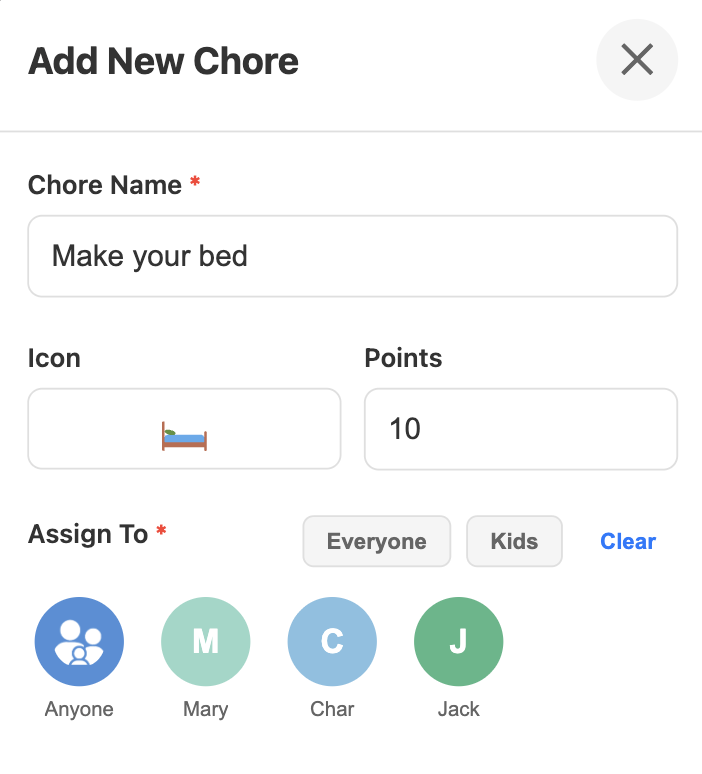
From the Dashie console (or mobile site), open the Chores screen and tap Add New Chore. A chore needs:
- Name — what the chore is ("Make your bed")
- Icon — an emoji that shows in the chores widget
- Points — how many points completing it earns
- Assign To — who can do it (see below)
Assignment options
The Assign To control decides who sees the chore as theirs. You have three flavors:
A specific family member
Pick one person and the chore is owned by them. It shows up in their color on the chores widget and counts toward their points when completed. Use this for chores that always belong to one person ("Make your bed" assigned to Jack).
Anyone
The chore is open and anyone in the family can claim and complete it. Whoever marks it done earns the points. Use this for chores that don't care who does them ("Empty the dishwasher").
Quick groups: Everyone / Kids
The shortcut chips above the member list let you assign to Everyone (every family member at once) or just the Kids (members with role = Child). Useful for recurring chores that should rotate.
Points & rewards
Points are the currency of the chores system. Set a point value when you create the chore (10 is a reasonable default for a quick task; 25 for something bigger). Each time the chore is completed, the assigned member earns that many points.
Rewards live on the Rewards screen alongside chores. A reward is anything you want to offer in exchange for points — "30 minutes of screen time" for 25 points, "Pick the movie this weekend" for 100 points, "$5" for 500 points. When a member has enough points, they can redeem the reward and points are deducted from their balance.
Tracking completion
Chores show on the dashboard's chores widget. Members can mark a chore complete right from the TV (parents can also mark on behalf of anyone from the console). Completed chores fade out for the day and return on the next scheduled occurrence if recurring.
The console gives you a longer-term view: per-member point totals, recent completions, and a history of redemptions. This is also where parents can adjust point balances manually if something needs correcting (or as a bonus).