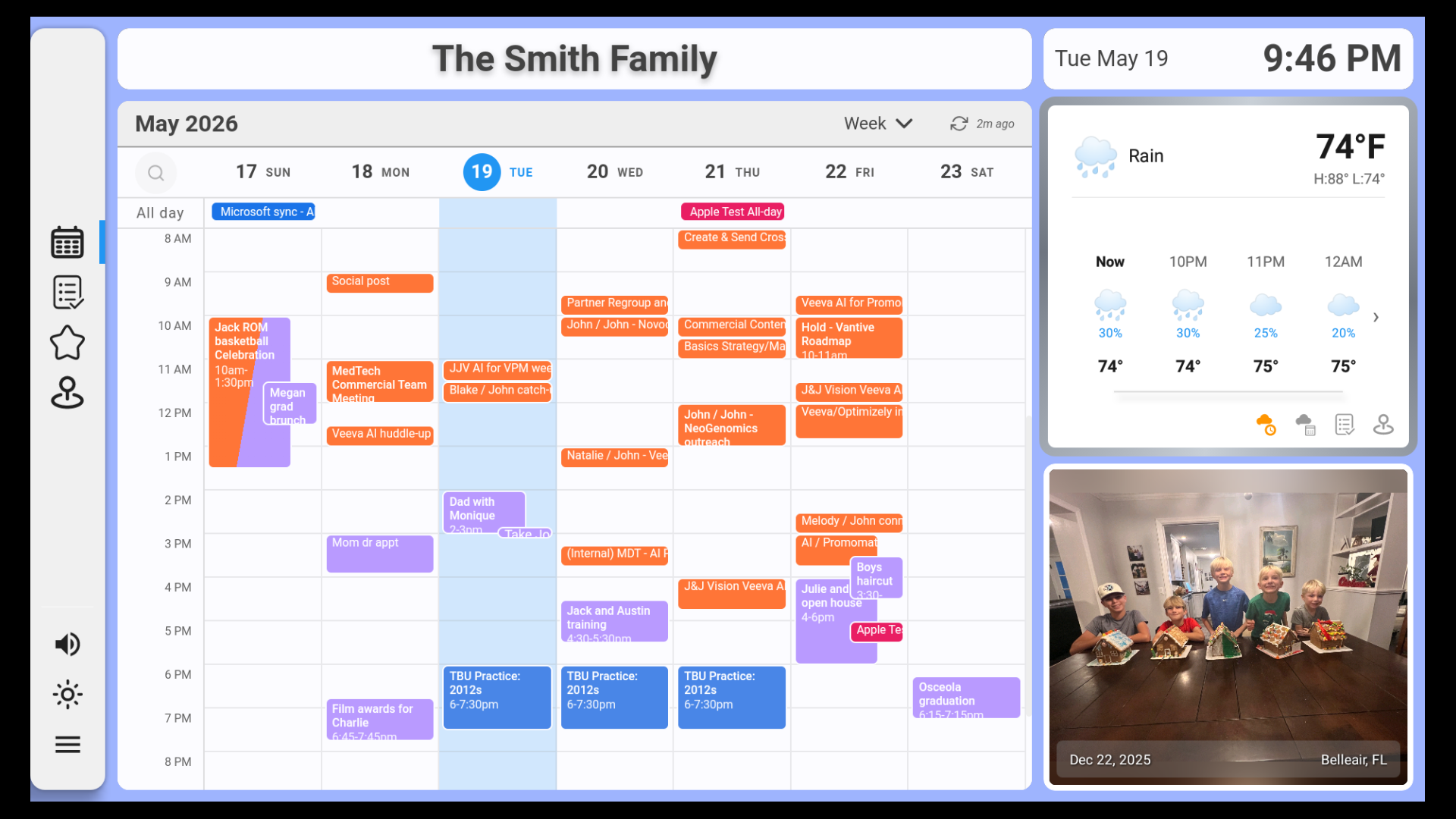
Dashie runs on Fire TV, Google TV, and other Android TV devices in addition to touch tablets. You can open the app alongside your normal Smart TV apps, but Dashie is most commonly used as a dedicated family dashboard display — a more economical alternative to a Skylight, Hearth, or similar display.
Note — Apple TV, Roku, and other Smart TVs are currently not supported.
Installing Dashie
Google TV / Android TV
Open the Google Play Store on your TV, search for Dashie, and install. Updates roll out automatically through the Play Store.
Amazon Fire TV
Open the Amazon Appstore on your Fire TV, search for Dashie, and install. Updates roll out automatically through the Amazon Appstore.
Sideloading (Android TVs without the right store)
Some Android TVs ship without the Google Play Store. In that case, install Dashie's APK directly. The full step-by-step is in the Android Sideloading guide — the same steps work on a TV with ADB enabled.
Signing in
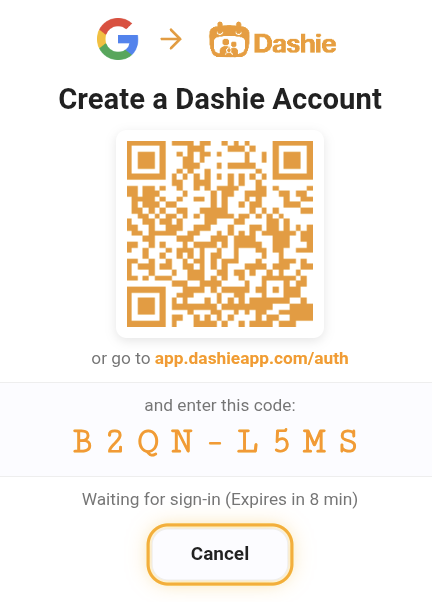
On first launch, Dashie shows a sign-in screen with a QR code. You don't need to type anything on the TV — just scan the QR code with your phone (or visit the URL it shows and enter the short pairing code) and sign in with Google there. The TV will pair within a few seconds and start syncing your calendars, photos, family, and settings.
QR pairing flow
The pairing code expires after ~8 minutes. If it expires before you scan, cancel and Dashie will issue a new one. Once paired, you won't see this screen again on this TV — you stay signed in unless you explicitly sign out.
Using Dashie on your Smart TV
Widgets
Dashie is laid out in widgets including your Calendar, photos, and weather. You can navigate between the widgets using your remote control.
Remote control
Using the d-pad (arrow keys) you can highlight the sidebar / menus or the widgets to interact with them. If you press select on a widget it will highlight it and call up a hint menu showing you options.
Example controls
- Calendar: when you select the calendar you can go to the next or previous week, press up or down to scroll up or down on the widget, or press select again to access other options like changing the number of days shown or switching into a month-view of the calendar. You can also hold the select button down for 1 second to navigate between and select individual days and then individual events for details.
- Photos: when you select the photos widget you are able to navigate back and forth between photos. Pressing select again gives you the option to put the photos in full screen mode, upload new photos, or change the photo widget settings.
- Weather: when you select the weather widget you can navigate between daily and hourly weather forecasts. Pressing select again gives you the option to change the weather widget settings.
Mobile Interface
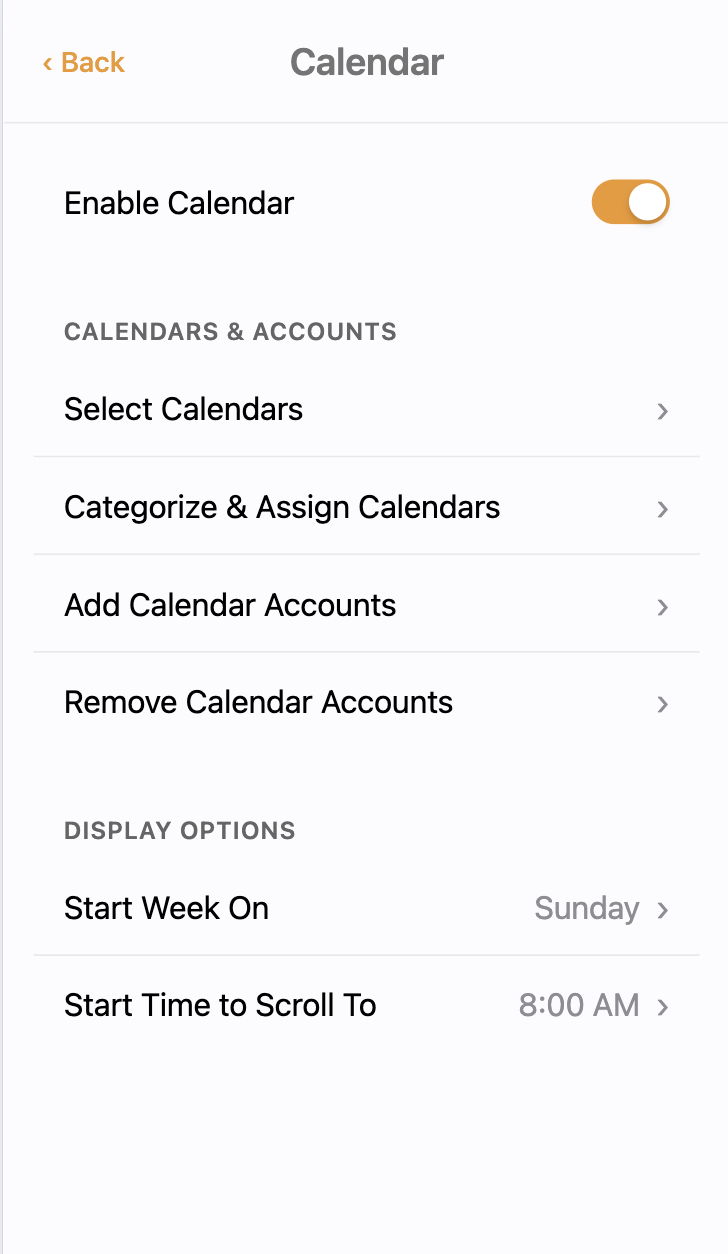
Because typing on a TV remote is not ideal, there is a mobile site for Dashie that allows you to do things like manage your photos, add and update calendars, and set up your family profiles. It's available from your mobile browser at app.dashieapp.com, and there's a QR code available from the menu to take you right there.
Control Center
You can set up other features in the control center, such as a sleep timer for when you want the screen to go dark and wake up, zoom preferences, time and date format, and more.
Support and Feedback
We are here to support you and open to your feedback. Please reach out to us at support@dashieapp.com or submit an inquiry through the website and we'll get back to you quickly!